Action and Stuff Not Working? Fix Import, Realms, and Compatibility Problems
Use this troubleshooting hub when Action and Stuff should already be working, but is not. The goal is to sort out whether the problem is your file route, Marketplace ownership, Bedrock version fit, Realm settings, or a pack conflict before you start reinstalling things blindly.
Start by separating the failure type first. Import problems, ownership problems, Realm behavior, and compatibility problems usually need different fixes.
This is a troubleshooting page, not another general download page.
Main Job
Identify why the pack fails before you waste time reinstalling or switching routes.
Main Split
Manual import issues and Marketplace ownership issues should not be treated like the same problem.
Realms Angle
Realms adds extra settings and known limitations that can make a working single-player setup look broken.
Research Base
Minecraft Help, Realm settings docs, Marketplace cache guidance, Mojang issue records, and Oreville support paths.
Start With the Right Problem Type
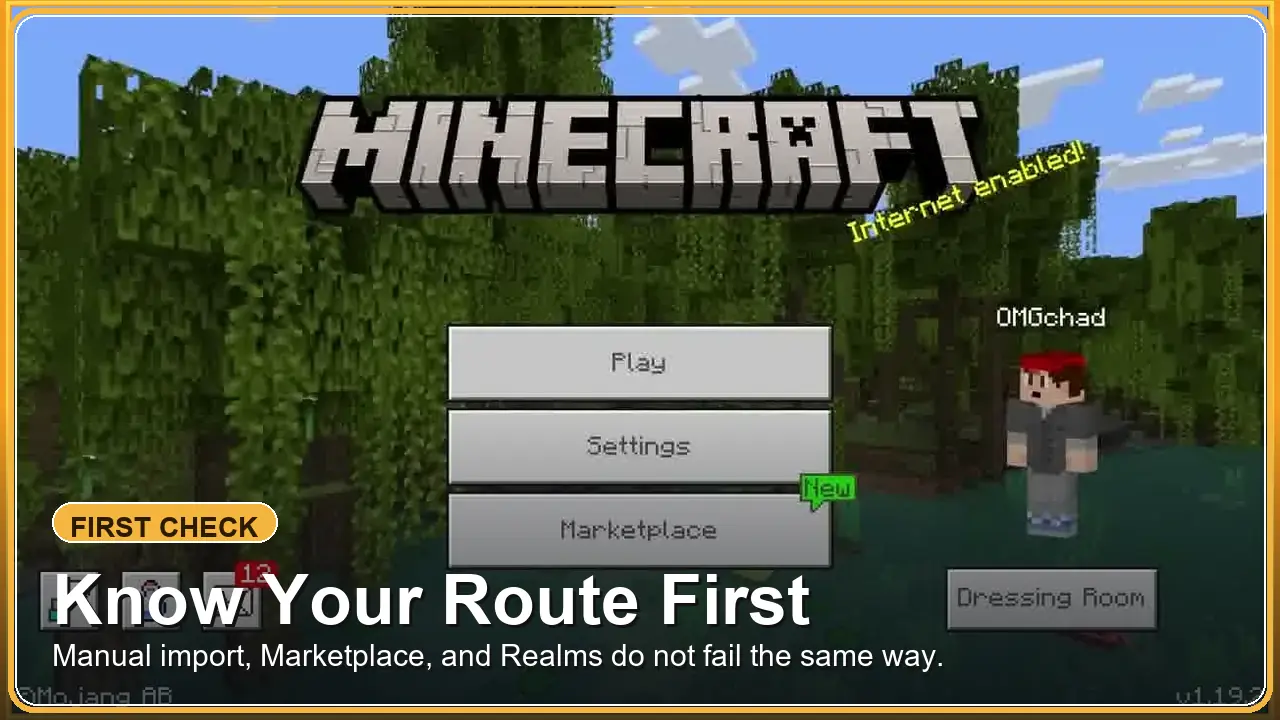
If you searched from Action and Stuff download because the pack imported, installed, or even worked once but now feels broken, the first thing to know is that not working can mean several different problems. Sometimes the pack never activates. Sometimes the Marketplace purchase does not show up where you expect. Sometimes a Realm behaves differently from a normal world. And sometimes the pack is technically active, but another resource pack, a version mismatch, or a platform limit makes it look incomplete.
Use this guide to separate those problems before you waste time on random fixes. If you treat a Marketplace ownership issue like an import issue, or treat a Realm setting problem like a reinstall problem, you usually just lose an hour and end up in the same place. The goal is to identify the right failure point first, then move to the correct fix path.
Best First Step
Figure out whether you are dealing with import, ownership, Realms, or compatibility first.
Most Common Mistake
Treating a Marketplace issue like a manual MCPACK issue or vice versa.
Do Not Do First
Do not jump straight to reinstalling Minecraft before checking route, account, and Realm settings.
If you imported a file manually
Focus on whether the pack actually activated, whether the file route matches your platform, and whether another pack is overriding the result. If the pack imported but never appears in the list at all, use the Action and Stuff Global Resources fix guide. If the pack applies but play turns choppy or heavy, use the Action and Stuff lag and FPS fix guide.
If you bought it through Marketplace
Start by checking account ownership, library visibility, and whether the pack is reaching the right device profile. That is a different problem from manual import, and the best next move is the Action and Stuff console Marketplace guide.
If it only breaks on Realms
Look at Realm-level resource settings before you assume the pack itself is bad. A setup that works in a normal world can still behave differently on a Realm because forced resources, cached settings, or known Realms limitations change the result. Use the Action and Stuff Realms guide when the local world still works but the shared world changes the result.
- Stay here if you are still trying to figure out what kind of failure you are seeing.
- Switch to the install or MCPE page if you already know the issue is a manual import or activation problem.
- Switch to the Marketplace page if the issue starts after purchase, account sync, or console access.
What Usually Goes Wrong With Action and Stuff?
Most Actions and Stuff problems fall into a few repeat categories. That matters because the right fix depends on which category you are actually in. If the pack never activated, you should not troubleshoot it the same way you would troubleshoot a missing Marketplace purchase. If the pack works in single-player but not on a Realm, that points you toward settings behavior and resource handling instead of a broken import.
The easiest way to move faster is to stop calling everything a download problem. In practice, the common failures are activation problems, ownership or library problems, Realm behavior problems, compatibility mismatches, and feature-limit misunderstandings. Once you label the problem correctly, the fix path gets much shorter.
Why one “not working” report can mean different problems
Two players can both say the pack is not working and be dealing with completely different situations. One person may have a valid file that imported but never got enabled in the world settings. Another may own the Marketplace version but be signed into the wrong account on console or PC. Another may only see the issue after moving into a Realm, where resource settings and cached behavior can change what loads. And another may actually have the pack running, but a feature like Expressions or a specific setting is limited by platform instead of being broken.
Import and activation problems on manual file routes
On manual routes, the most common problem is not the download itself. It is the gap between importing the file and getting the pack to apply correctly in the right place. That can mean the pack never got enabled, another pack sits above it in the order, the wrong file route was used for the device, or a ZIP/MCPACK assumption does not match how your Bedrock setup actually handles resources. This is why manual route troubleshooting usually starts with activation and pack order, not with account ownership.
Ownership and library problems on official routes
Official routes create a different kind of failure. Here the pack may be fully legitimate, but it still does not appear where you expect because the wrong Microsoft account is active, the Marketplace library has not refreshed, or the download never finished properly. Those cases can feel like the pack vanished, even though the real issue is account state, device sync, or Marketplace delivery rather than the pack content itself.
Wrong Assumption
If the file imported successfully, the pack must already be active. In reality, import and activation are separate steps.
Wrong Assumption
If it works in one normal world, it should behave the same way on a Realm. Realms can change resource behavior enough that this is not a safe assumption.
Wrong Assumption
If one feature is missing, the whole pack failed. Sometimes the pack is active and you are only hitting a version, platform, or feature-specific limit.
- Activation problems usually show up after a file import or after changing pack order.
- Ownership problems usually show up after purchase, re-login, device switch, or Marketplace sync issues.
- Realm problems usually show up when a working local setup behaves differently once a shared world is involved.
What to Check Before You Try Random Fixes
Before you reinstall Minecraft, clear everything, or start hunting for a different file, stop and check a few basics. Most wasted troubleshooting time comes from skipping the simple split between version fit, route type, account state, and pack overrides. If you verify those first, you usually avoid the longest wrong turns.
This is especially important with Actions and Stuff because the same visible symptom can come from completely different causes. A missing feature can be a platform limit. A broken look can be a conflicting resource pack. A missing purchase can be an account or Marketplace issue. A Realm problem can come from Realm-level settings even when your local setup looked fine a minute earlier.
Your Bedrock version and current update line
Start with Bedrock version fit. The pack has its own update line, but that is not the same thing as your Minecraft Bedrock version. If your game is behind the pack’s expected support range, or if you are troubleshooting with old assumptions from a previous update, the pack can look broken when the real issue is compatibility. If version fit is the part you are least sure about, move to the dedicated compatibility page next instead of guessing from memory.
Whether you are using MCPACK, ZIP, or Marketplace
Next, make sure you are honest about the route you are actually using. A manual MCPACK or ZIP path leads to activation and pack-order checks. A Marketplace route leads to ownership, account, download, and cache checks. If you mix those paths together in your head, you usually apply the wrong fix and make the problem harder to diagnose.
Whether another pack or Realm setting is overriding the result
Then look for overrides. Another pack can sit above Actions and Stuff and hide part of the intended output. On Realms, the world can also force or prefer a different resource behavior than the one you tested locally. That is why a clean test with the pack alone, and a separate check of Realm-level resource settings, is often more useful than a full reinstall.
Check 1
Confirm your current Bedrock version and compare it to the pack path you are trying to use.
Check 2
Decide whether you are troubleshooting a manual file route or an official Marketplace route.
Check 3
If the route is official, verify the correct Microsoft account and library ownership first.
Check 4
Test for pack conflicts and, if you are on a Realm, inspect Realm resource settings separately.
- If you do not know which route you used, solve that first before trying deeper fixes.
- If you are on Realms, do not assume local world behavior will carry over unchanged.
- If another resource pack is active, test Actions and Stuff alone at least once before blaming the file.
When Action and Stuff Imports but Does Not Activate
If you are on a manual route, import success does not automatically mean the pack is active in the place you care about. This is one of the most common failure points because the file can appear to import correctly, yet nothing meaningful changes in the world. In that situation, the problem is usually activation, pack order, or route mismatch, not the existence of the file itself.
The file imported, but the pack is not actually enabled
Import is only the handoff into Bedrock’s resource system. After that, the pack still has to be enabled in the correct world or profile context. If you imported a file and then jumped straight into testing, you may be looking at a world that never actually applied the pack. This is why the install flow still matters even after a file appears in the resource list.
Load order, conflicting packs, and hidden overrides
Even if the pack is enabled, another resource pack can still sit above it and override part of the visual result. That can make Actions and Stuff look half-broken when the real issue is that Bedrock is mixing outputs from more than one source. The cleanest test is to disable other packs temporarily and see how the pack behaves on its own. If it suddenly starts looking correct, you are dealing with a conflict or ordering issue rather than a bad import.
Why reinstalling first is usually the wrong move
Reinstalling too early usually just resets everything without telling you what the real problem was. You lose time, and if the issue was activation logic or pack order, the same symptom often comes back immediately. A better order is to confirm the route, confirm the pack is enabled in the right place, test it alone, and only then decide whether the file or app state is suspicious enough to justify a deeper reset.
Try this order first
Confirm the pack shows in your resource list, enable it in the right world context, test it without other packs above it, then compare the result against your manual route expectations. That order usually tells you more than jumping straight to reinstalling.
- If the file appears in Bedrock but nothing changes, treat that as an activation check first.
- If the result looks partial or inconsistent, treat that as a conflict or load-order check next.
- If the pack works alone but fails with other packs, the import probably was not the real problem.
When Marketplace Purchase or Download Is the Problem
If you are using the official route, the pack can still feel unavailable even when the purchase itself is real. In this branch, the problem is usually not import or pack order. It is more often ownership visibility, account state, library refresh, or Marketplace delivery. That means the questions you ask should change: not “did the file import?” but “is the right account active?” and “did the pack actually reach this device or profile?”
The pack is missing after purchase
When the pack seems to disappear after purchase, start with the simplest possibility: it may not be showing in the place you expected yet, or you may be checking the wrong route entirely. This gets especially confusing when someone reads manual MCPACK advice while actually using Marketplace ownership. If the pack was bought through the official store, focus on account, library, and delivery checks first instead of trying manual import fixes that do not apply.
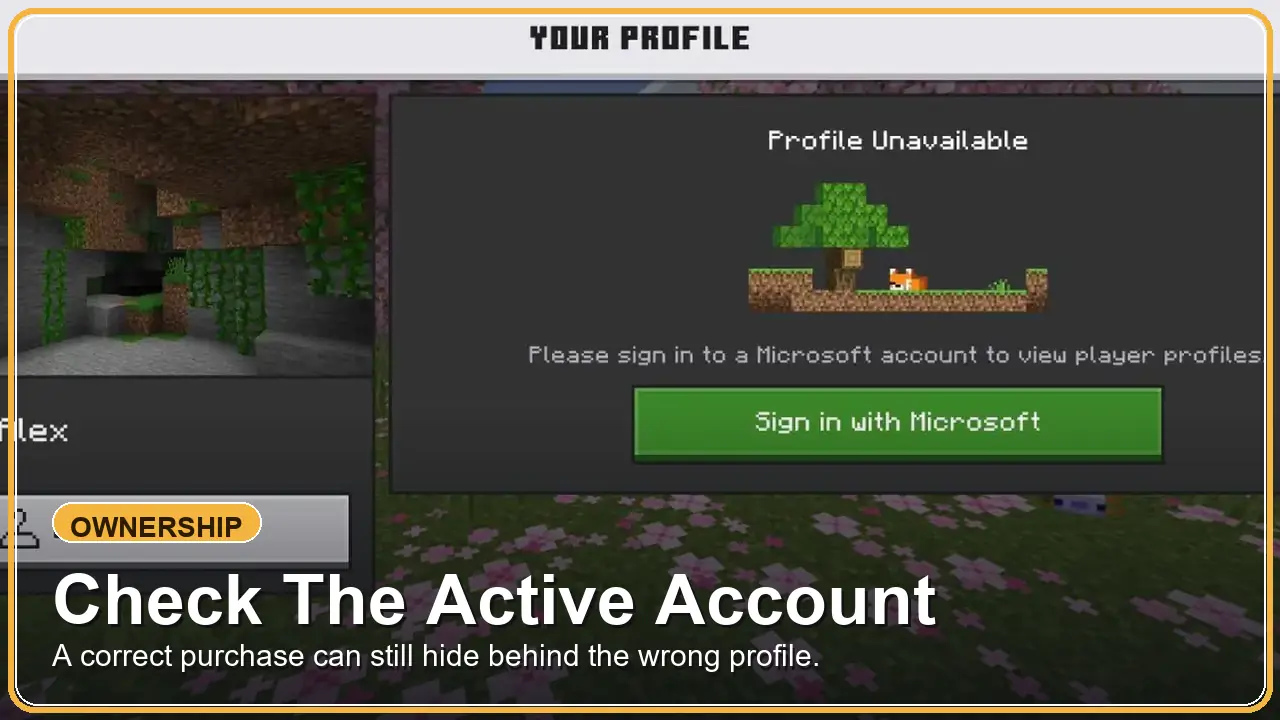
You are signed into the wrong account or wrong profile
This is one of the biggest official-route problems on console and Bedrock devices. A pack can be owned on one Microsoft account while the active game profile is signed into another. From the player side, it just looks like the pack is gone or inaccessible. From the system side, it is doing exactly what it should: showing the library for the account that is actually active. If there is any doubt here, stay on the official-route branch instead of dropping back into manual install advice.
When clearing Marketplace cache is the right next step
Clearing Marketplace cache makes sense when ownership looks correct but delivery still feels stuck or outdated. It should not be your first move for every issue, but it is a reasonable next step when the correct account is active, the purchase should exist, and the Marketplace library still does not behave normally. That is the point where official Minecraft Help guidance around Marketplace cache becomes more relevant than file-based troubleshooting.
Likely Ownership Issue
You bought the pack, but it only seems missing on one device, one console profile, or one signed-in account state.
Likely Download Issue
The correct account is active, but the library still will not refresh properly or the pack never finishes showing up.
Likely Wrong Route
You are trying Marketplace fixes even though your actual setup depends on a manual file path or resource-pack import flow.
- If the purchase exists but the pack is missing, check the active Microsoft account before anything else.
- If the account is correct and the library still behaves oddly, then Marketplace cache troubleshooting becomes reasonable.
- If you never used the official route at all, stop here and move back to the manual import path instead.
Why Action and Stuff Behaves Differently on Realms
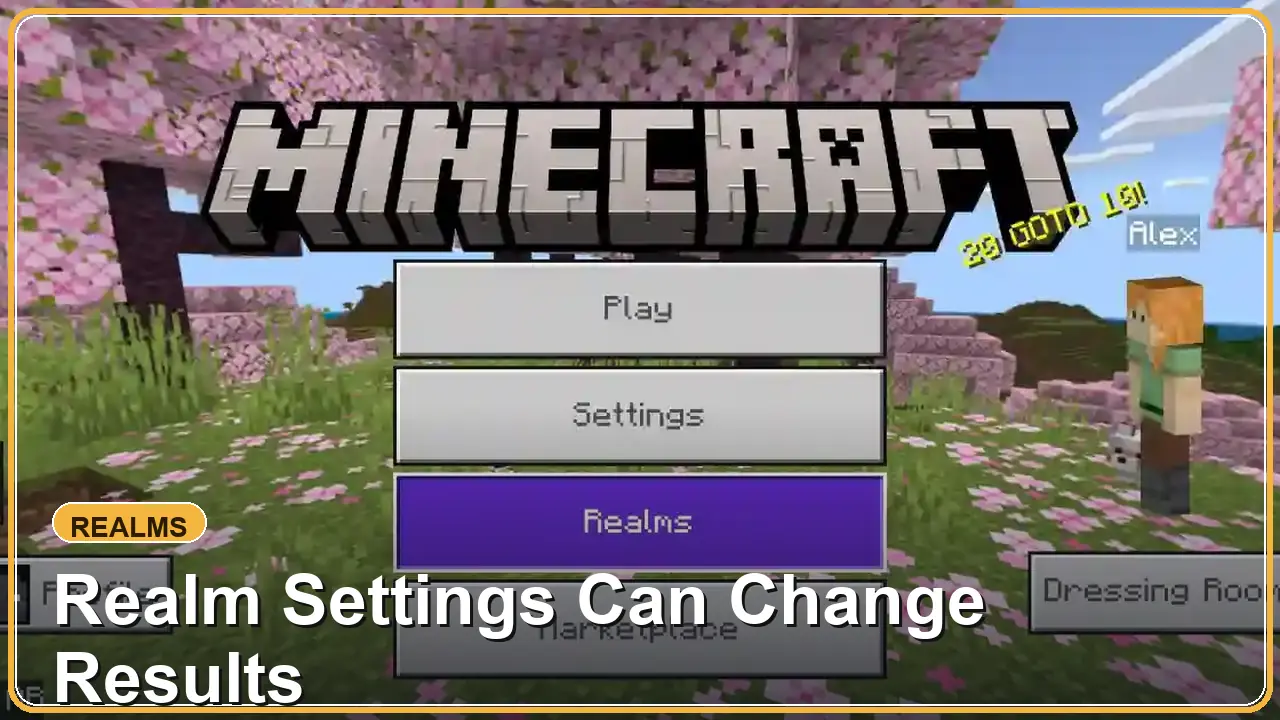
Realms is where many players get confused because the pack can look fine in a normal world and then seem broken the moment a shared world is involved. That does not always mean Actions and Stuff failed. It often means Realm-level resource behavior changed the result, or a known settings limitation made the pack behave differently than it did in local testing.
Why a working single-player setup can still fail on a Realm
A single-player world mostly reflects the resources and settings active on your own device. A Realm adds another layer because the world itself can influence which resource behavior gets enforced, shared, or downloaded. That is why a setup that looked correct a moment ago can suddenly feel wrong when you join a Realm. The local test was still useful, but it did not prove that the Realm would handle resources the same way.
Global resources, Realm resources, and forced downloads
Global resources are your own device-level choice. Realm resources are tied to the Realm environment and can change what other players see or what gets required on join. Once those two layers start interacting, troubleshooting gets harder if you do not separate them clearly. If a Realm is forcing resource behavior, your global setup may no longer be the only thing controlling the final result.
Known settings and subpack limitations that confuse people
Realms also has a history of confusing users around settings persistence and subpack-style behavior. That means some pack options or presentation choices can seem to reset, ignore local expectations, or behave inconsistently once the Realm layer is involved. It is better to treat that as a Realm-behavior problem first instead of assuming the pack itself is corrupted, especially if the same pack still behaves correctly in a non-Realm world.
Important limit
If Actions and Stuff works outside Realms but not inside a Realm, do not jump straight to reinstalling. Check Realm resource settings and the local-versus-Realm difference first, because that split explains a large share of these reports.
- A working local world does not guarantee the same result inside a Realm.
- Global resources and Realm-level resources are related, but they are not the same control point.
- If the issue only appears on Realms, treat it as a Realm behavior check before treating it as a broken pack.
When Compatibility or Performance Is the Real Problem
Sometimes the pack is not actually broken at all. The real problem is that your Bedrock version no longer matches your assumptions, your device does not have enough headroom to show the pack cleanly, or a feature you expected is limited by platform. This hub is not here to replace the full compatibility page. Its job is to help you recognize when you should stop troubleshooting like this is an import failure and start treating it as a compatibility or environment issue instead.
Bedrock version mismatch and stale assumptions
One of the easiest ways to misread the problem is to blur the pack update line and the game version together. Actions and Stuff can have its own release line while Minecraft Bedrock keeps moving separately. If you are checking against old assumptions, or if your game version changed and the pack expectations did not, the result can look broken when the real issue is version fit. That is the point where you should step out of generic troubleshooting and verify the version relationship properly.
Low device headroom, broken visuals, or incomplete effects
Performance can also fake a failure. If the device is already under pressure, the pack may load with stutters, incomplete-looking visuals, or an overall result that feels wrong even though the route and ownership are fine. That does not always mean the file is corrupt. It can simply mean the device or current session is not giving the pack enough room to behave consistently.
Feature limits on console, multiplayer, or specific systems
Some missing features are not bugs at all. They are limits of the platform or the context you are using. Console is a good example, where parts of the broader character-expression experience are not the same as they are on systems with more flexible skin or resource behavior. Multiplayer and Realm contexts can also change what feels available. If one specific feature is missing while the rest of the pack clearly works, you may be hitting a limit rather than a broken install.
- If the pack worked before an update and now looks wrong, treat that as a compatibility check before blaming the file.
- If the visuals look unstable or incomplete only on weaker hardware, treat that as a device-headroom check before treating it as a purchase or import issue.
- If one feature is missing but the rest of the pack clearly works, treat that as a possible platform limit before calling the whole pack broken.
What to Try Before You Contact Support
Before you ask for help, take one calm pass through the basics in the right order. You are not trying to test everything. You are trying to remove the most common wrong explanations first so that, if support is needed, the real issue is already narrowed down.
The fastest troubleshooting order
Start by confirming the route you used: manual import or Marketplace. Then confirm version fit, then check whether the pack is actually enabled in the right place, then test it without conflicting packs, and only after that move into account, cache, or Realm-specific checks. That order works because it removes the most common false assumptions before you burn time on deeper changes.
What information to gather if the problem stays unresolved
If the issue still stays unresolved, gather the facts someone else would need to reproduce it quickly: your Bedrock version, platform, whether you used MCPACK, ZIP, or Marketplace, whether the issue happens only on Realms, what other packs are active, and what you already tested. A screenshot or short description of what “not working” looks like is also more useful than repeating the phrase by itself.
Which page should be your next step if this one does not solve it
If this hub helped you identify the branch but did not fully solve it, move to the page that owns that branch instead of staying in a vague troubleshooting loop. Your next step should depend on whether you are really facing manual activation, version fit, or Marketplace ownership behavior.
If your issue is import or activation
Use the Action and Stuff MCPE resource pack guide and recheck the route and activation flow. If you still need the wider Android setup, move to the Action and Stuff install guide next.
If your issue is version fit
Use the Action and Stuff compatibility guide and verify the current Bedrock relationship instead of guessing from an older setup.
If your issue is Marketplace ownership or console
Use the Action and Stuff console Marketplace guide and check the official route, account state, and console behavior there.
- Confirm the route first, because every later step depends on that split.
- Test the pack alone before assuming the file itself is bad.
- Bring version, platform, route, and test results with you if support becomes necessary.
When Official Support Is the Right Next Step
If you have already checked the route, version fit, account state, and obvious pack conflicts, support starts making sense. The important part is choosing the right support path. Some problems belong to Oreville because they relate to pack behavior, known features, or official product support. Other problems belong to Minecraft or Marketplace support because they involve purchases, account ownership, download delivery, or platform-level issues.
When to contact Oreville support
Contact Oreville support when the problem looks pack-specific after the basic checks are done. Good examples are a feature behaving differently than the official guides describe, a pack setting not doing what it should on a supported setup, or a visual issue that still happens after you tested the pack alone. Oreville’s guides already point users toward their official Discord and support email, and that is the right route when the pack itself appears to be the real problem.
When Minecraft or Marketplace support makes more sense
Use Minecraft or Marketplace support when the problem is really about purchase state, Microsoft account access, Marketplace cache, library visibility, or platform delivery. Those are not the same as pack-behavior issues, and sending them to Oreville first usually slows you down. If the game cannot see your ownership correctly, or the store side of the route is the thing failing, platform support is the better next step.
How to ask for help without wasting another day
Do not send a vague message like “it does not work.” Give the version you are on, the platform you are using, whether the route was MCPACK, ZIP, or Marketplace, whether the issue only happens on Realms, and what you already tested. A short clear report usually gets you to the real answer much faster than a frustrated one-line complaint.
- Use Oreville support for pack-specific behavior that still fails after clean testing.
- Use Minecraft or Marketplace support for purchase, account, or delivery problems.
- Include your route, version, platform, and test results whenever you ask for help.
FAQs About Action and Stuff Not Working
If you still are not sure which route or issue bucket you are dealing with, come back to the route split above and identify whether the failure is import, ownership, Realm behavior, or compatibility before you keep testing random fixes.
Because Realms can handle resource behavior differently from a normal world. Realm-level settings, forced resources, and known settings limitations can make a setup look broken even when it worked locally.
The most common reasons are the wrong Microsoft account, delayed library visibility, or a Marketplace delivery issue. Check the active account first, then move to cache or library troubleshooting.
Import only places the pack into Bedrock’s resource system. You still need to enable it in the right place, and other packs can override it even after import succeeds.
Usually no. Reinstalling is a late move, not a first move. Route checks, activation checks, account checks, pack order, and Marketplace cache are all better places to start.
Yes. Another pack can override part of the result or change the order enough that Actions and Stuff looks incomplete. Testing it alone is one of the fastest conflict checks you can do.
Use the Action and Stuff console Marketplace guide. Console troubleshooting usually depends on official ownership, account state, and Marketplace behavior rather than manual import logic.
Final Thoughts
Most Actions and Stuff problems become easier once you stop treating them like one big broken-download issue. The right fix depends on the route you used, the platform you are on, and whether the real problem is activation, ownership, Realms behavior, compatibility, or a feature limit. If you identify that branch first, the next step usually becomes obvious.
If you are still stuck, move to the page that matches your problem type: the install guide, compatibility guide, or console Marketplace guide. The key is to stay on the branch that actually matches your problem instead of restarting the whole process from scratch.