How to Download and Install Action and Stuff
Choose the Action and Stuff file type that matches your setup before you install anything. Use APK if you need the Android package install, MCPACK if Minecraft Bedrock is already installed, or Marketplace if you want the in-game option.
Most install problems start with the wrong file type, a Bedrock version mismatch, or stopping before the pack is activated inside Minecraft.
Use the full install steps here when you need help from file choice to activation. If Bedrock is already installed and you only need the pack import file, the MCPE guide is the better next step.
Use It For
Full install steps from file choice to Bedrock activation
Best First Step
Choose APK, MCPACK, or Marketplace before you install
Main Checks
File format, Bedrock version, and activation flow
Common Failure Point
Import stops early or the pack never gets enabled
Before You Download Action and Stuff
Set the file choice before you download anything. Most install failures start here: wrong file type, wrong Bedrock build, or missing setup basics on the device.
- Pick the file type that matches your device and what you are trying to install.
- Check your current Bedrock build before you install or import.
- Make sure file access, storage, and Android prompts will not block the setup.
Choose APK, MCPACK, or Marketplace first
Use APK when you need the Android package install. Use MCPACK when Bedrock is already installed and you mainly need the pack import file. Use Marketplace when official in-game delivery and standard ownership handling matter most.
Check your Minecraft Bedrock version before installing
Check the Bedrock build running on your device before you touch any file. A download can finish cleanly and still fail later if the pack line does not fit your current game build closely enough. If your game was updated recently, or if you are using an older setup, version fit matters more than grabbing the newest file first.
What you need before starting the setup
Keep Bedrock installed, enough storage free, and access to your downloads folder or file manager. Android users should also expect the unknown-source prompt during APK setup. If you already use several heavy visual packs, start on a cleaner setup first so you can tell whether any problem comes from the new file or from the rest of the pack stack.
Game
Bedrock installed and opening normally
Version
Current Bedrock build checked
Access
Downloads or file manager ready
Setup
Storage free and Android prompt expected
How to Download Action and Stuff on Android
On Android, the download only helps if you pick the right file first. Do not grab the first file you see. Match the file type, your Bedrock build, and the next install step before you save anything.
- Choose the file type that matches what you actually need
- Check the pack line against your current Bedrock build
- Verify the format before you save anything to the device
Find the correct file for your device and Bedrock build
Choose APK if you need the Android package install. Choose MCPACK if Bedrock is already installed and you only need the pack import file. Then match that file to the Bedrock build on your device before you download anything.
If Bedrock is already on your device and you only need the pack import, go with MCPACK instead of treating every Android download like an APK install.
Check version, file label, and file format before downloading
Before you tap download, check the version line, file label, and file format. Those details tell you what you are getting and what the next step should be.
The format matters most because it decides what happens next. APK should lead to Android installation. MCPACK should open into Bedrock import. If that does not line up, stop before you save the file.
Avoid broken, outdated, or mismatched files
Use clearly labeled files with visible compatibility notes. Avoid vague file names, mixed version labels, or downloads that do not make it clear whether they are APK or MCPACK.
Do not force an older pack line onto a newer Bedrock build unless you are using it as a deliberate fallback after checking compatibility. Most bad Android downloads come from the wrong file type, the wrong version, or unclear file labeling.
How to Install the Action and Stuff APK
Use APK only if you actually need the Android package install. If Bedrock is already installed and you only need the pack import file, the MCPACK section below is usually the better option. Most APK failures come from skipped permission prompts or from assuming Android install already finished the in-game setup.
- Keep APK installation separate from MCPACK import.
- Allow the install prompt for the app that opened the file.
- Check Bedrock resources after Android setup finishes.
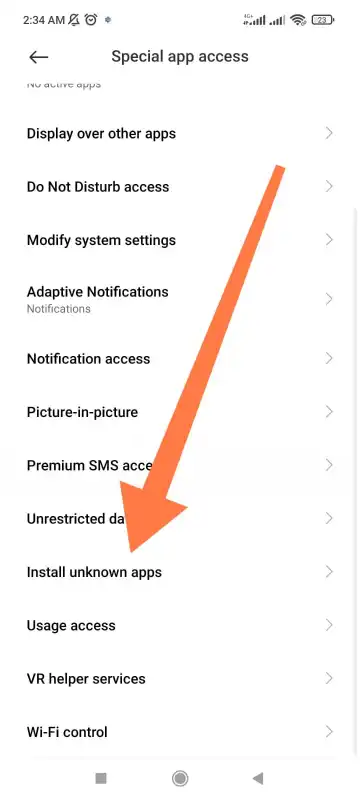
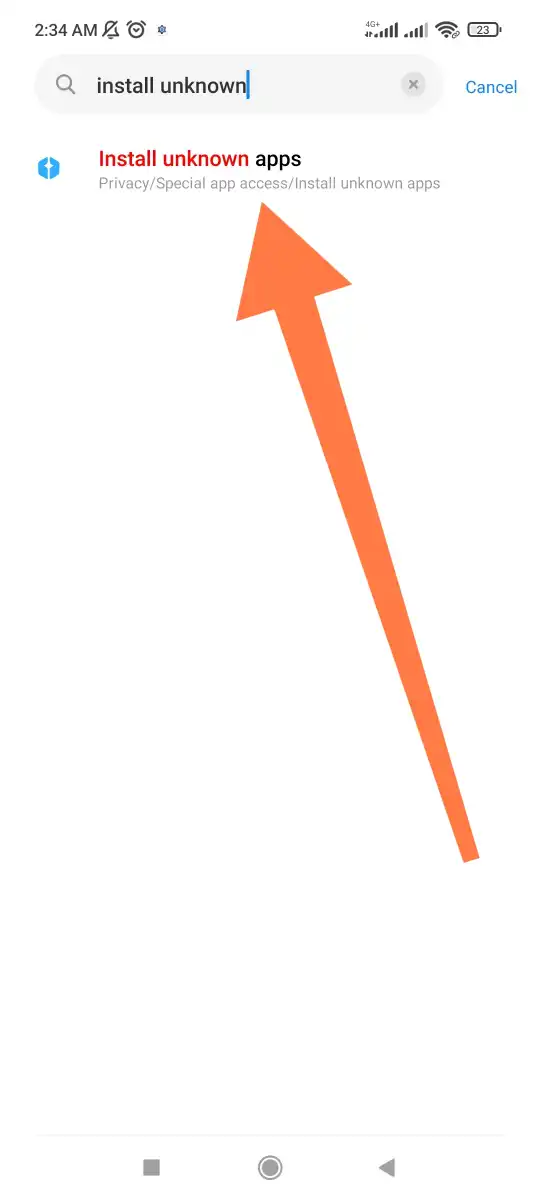
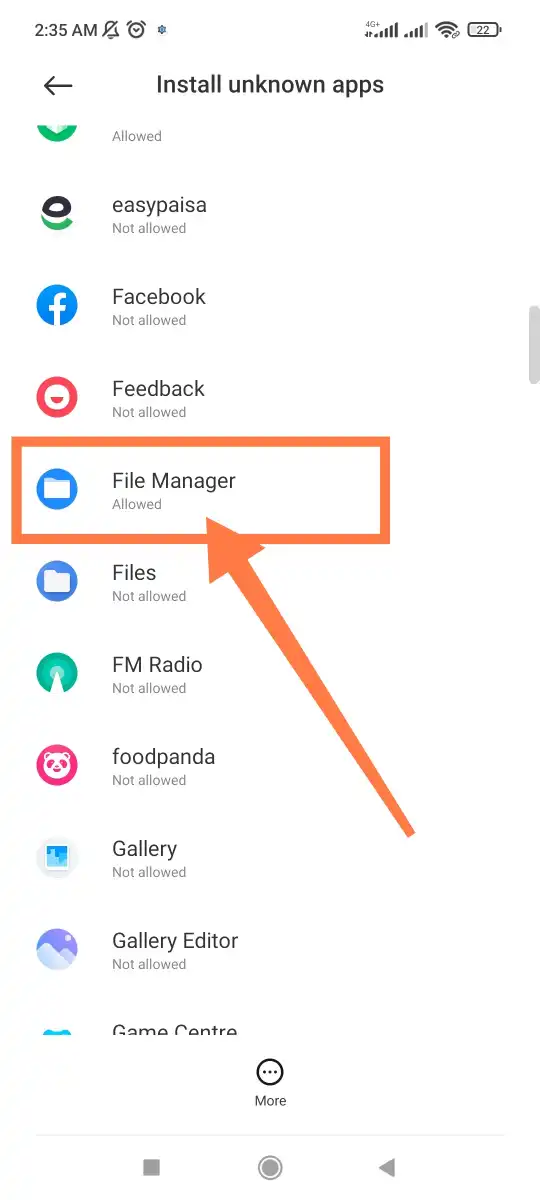
Allow installation from unknown sources on Android
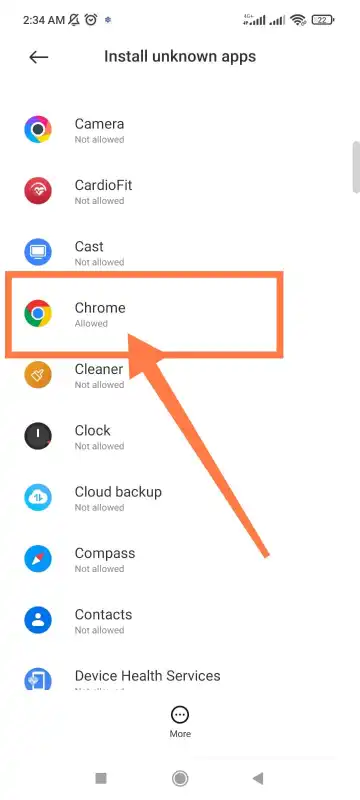
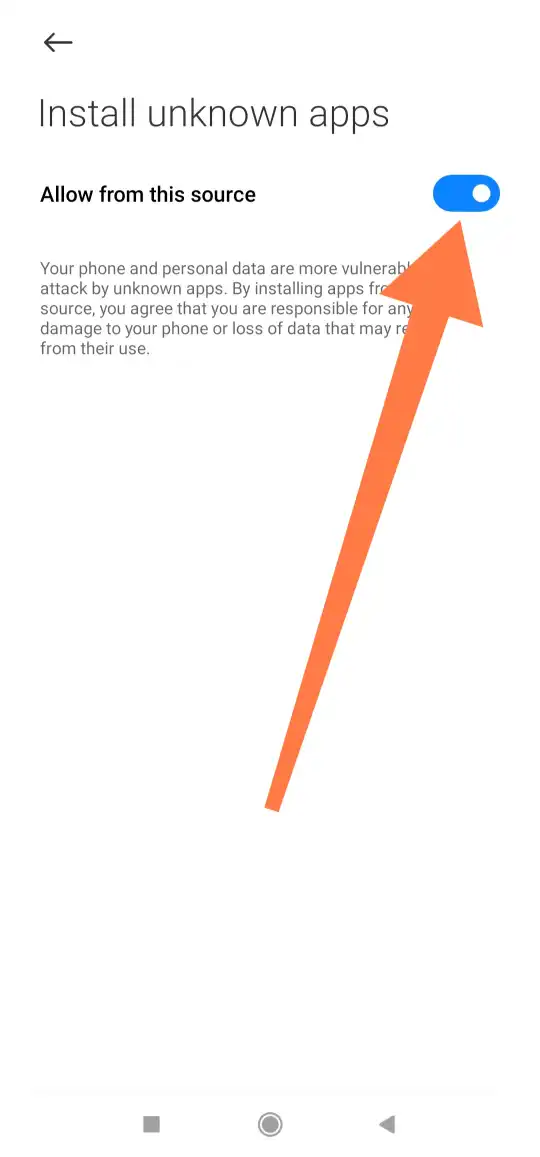
If Android blocks the file, allow unknown-app install for the browser or file manager that opened the APK, then return to the installer and continue. You do not need to guess through device settings. Android usually tells you which app needs permission.
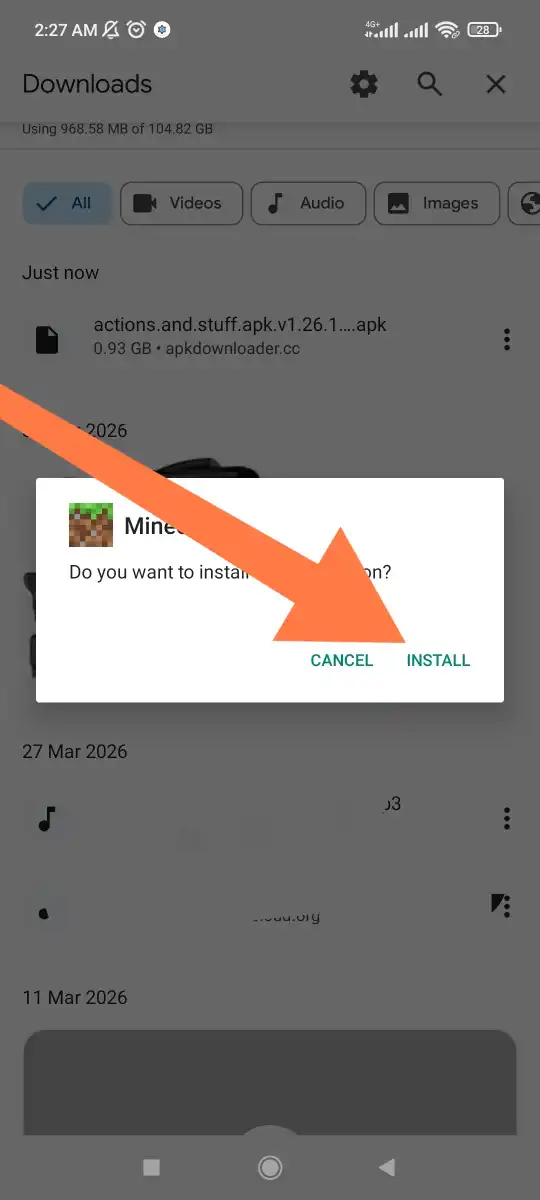
Open the APK file and complete Android setup
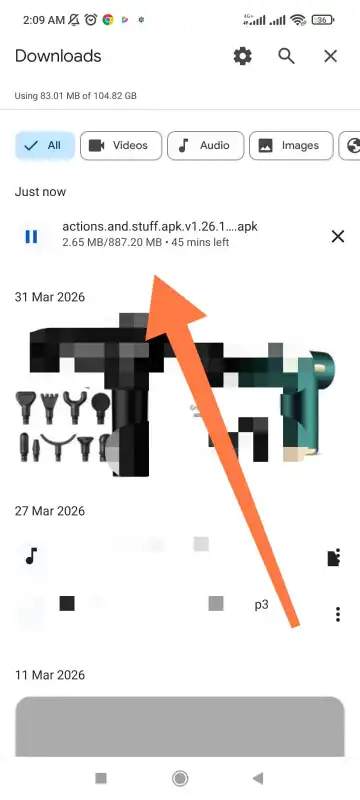
Open the APK from downloads
Use your browser downloads tray or file manager so you are opening the exact file you just saved.
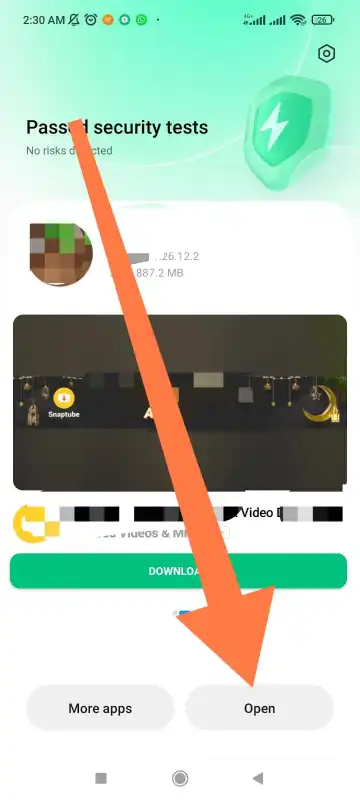
Review the Android prompt
Read the install screen instead of tapping through it. This is where Android shows whether the package is about to install correctly.
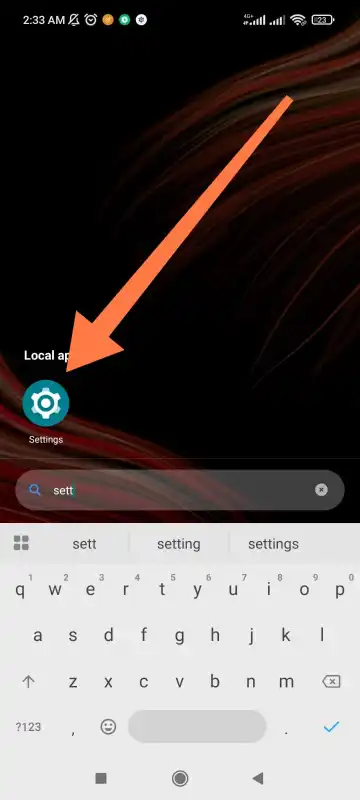
Allow the source app if Android asks
Turn on permission for the app that opened the file, then return to the APK and continue the installation.
Finish the Android install
Let Android complete setup without closing the installer halfway through or jumping to Minecraft too early.
Check Bedrock after the install ends
Once Android finishes, open Bedrock and verify that the pack shows up where you expected in resources.
Visual install walkthrough
Use this image sequence to confirm each Android screen if your device menus look slightly different or if the install prompt disappears too quickly.
Launch Minecraft Bedrock after the APK setup
After Android says the install is complete, open Minecraft Bedrock and check the resource-pack area before assuming the setup is finished. APK completion only covers the Android side. You still need to confirm that the pack appears and can be activated inside the game.
How to Import the Action and Stuff MCPACK File
If Minecraft Bedrock is already installed on your phone or tablet, MCPACK is usually the fastest option. You are not installing a separate Android package here. You are giving the pack file to Bedrock so the game can import it directly.
- Use MCPACK only when Bedrock is already installed.
- Open the file from downloads and let Bedrock handle the import.
- Check the file type before you tap it so you do not mix it up with APK.
Open the MCPACK file from your downloads folder
Open your downloads folder, find the Action and Stuff file, and confirm it ends in .mcpack. Then tap it from storage. If Android recognizes the file correctly, Bedrock should open it without any extra installer step.
Let Minecraft Bedrock import the pack automatically
When this works, Minecraft Bedrock opens and starts importing the pack. Wait for the import message to finish before you close the game or switch apps. Cutting this step short is one of the easiest ways to think the pack failed when the import simply never finished.
What to do if Bedrock does not open the file
- Confirm Bedrock is installed on the device and can open normally.
- Confirm the file is MCPACK, not APK or ZIP.
- Compare the pack line with your current Bedrock build.
- Retry from a clean re-download if Android or Bedrock fails to recognize the file.
How to Activate Action and Stuff in Minecraft
Import only puts the pack on the device. Action and Stuff will not change how Minecraft Bedrock looks until you turn it on inside the game. This is the step people skip most often when they think the install failed.
- Check that the pack finished importing before you try to enable it.
- Use Global Resources for broad testing first.
- Move to world-specific resources only if you need a separate setup for one world.
Turn on the pack in Global Resources
Open Bedrock settings, go to the resource-pack area, and enable Action and Stuff in Global Resources. This is usually the fastest way to confirm that the pack is available and working across the game.
Apply it to a world from World Resources if needed
Use World Resources when you want the pack on one world only or when you want cleaner testing without changing your global setup. This is also useful when you are comparing Action and Stuff against another pack or trying to isolate a conflict.
Choose the right subpack or texture style
If the pack gives you more than one style or subpack option, start with the balanced choice first. Higher-detail options can look better, but they also make it harder to tell whether a problem comes from activation, compatibility, or device headroom. If the pack is already active and you need to tune the result instead of reinstalling, adjust the style options only after the main setup is confirmed working.
Common Install Problems and Fixes
Most Action and Stuff install problems come from four simple mistakes: using the wrong file type, skipping a permission step, trying a pack line that does not match your Bedrock build, or assuming import means activation is already done. If the checks below still do not solve it, move to the Action and Stuff not working guide for the broader troubleshooting steps.
- Recheck whether you should be using APK, MCPACK, or Marketplace first.
- Match the pack line to your current Bedrock build before retrying.
- Confirm whether the failure is install, import, or activation.
Most common install failures and practical fixes
The APK will not install on Android
This is usually a permission problem or a sign that APK was not the right file type for what you needed. Recheck unknown-app permission for the browser or file manager that opened the APK, then retry with a clean install instead of tapping the same failed prompt again.
The MCPACK file will not import
Check the format first. If the file is not really .mcpack, Bedrock will not handle it correctly. Then compare the pack line with your Bedrock build and retry from a clean re-download.
The pack imported but does not appear in Minecraft
Reopen the resource-pack area, reimport the file if needed, and wait for the full import confirmation before closing the game. Interrupted import is one of the most common causes here. If the import finishes but the pack never appears, use the Action and Stuff Global Resources fix guide.
The visuals did not change after activation
Make sure the pack is actually enabled, not only imported. Then test without overlapping visual packs, and start with the balanced subpack or style so you can separate activation problems from heavier visual settings.
How to Update or Reinstall Action and Stuff
When Action and Stuff stops behaving correctly after a Bedrock update, treat the fix as a clean replacement. Most update problems get worse when old files, old imports, and new pack lines are stacked on top of each other without a reset.
- Replace old files cleanly instead of layering new ones on top.
- Use the same file type again: APK stays APK, MCPACK stays MCPACK.
- Recheck activation after the replacement finishes.
Remove the older file before replacing it
Disable the older active setup first, and remove it if needed, so the next test is clear. This matters most when you are not sure whether the problem comes from the new pack line, a duplicate import, or a leftover resource state inside Bedrock.
Import or install the latest version cleanly
Run the install again like a first-time setup. Verify the file type, compare the pack line with your Bedrock build, finish the install or import without interruption, then reactivate the pack in Bedrock resources.
When an older version may work better
If the newest line clearly does not match your current Bedrock build yet, an older compatible version can be the safer fallback.
Use that only as a deliberate compatibility choice, not as the first thing you try before checking the current build fit.
Is APK, MCPACK, or Marketplace Best for Your Setup?
The best choice depends on what is already on your device and how you want to use Action and Stuff afterward. Pick the file type or delivery method that matches your setup, not just the one with the most familiar name.
- Use APK when you need the Android package install.
- Use MCPACK when Bedrock is already installed and you only need the pack import.
- Use Marketplace when official ownership and in-game delivery matter most.
If you are on Apple devices, use the Action and Stuff iOS guide instead of Android-first steps.
Best choice by setup
Best choice for direct Android download users
APK is the better fit when you need the Android package install and you are comfortable handling the install prompt, unknown-app permission, and the final Bedrock check after setup.
Best choice for existing Bedrock players
MCPACK is usually the cleanest option when Minecraft Bedrock is already installed and you only need the pack import and activation steps.
Best choice for users who want the official option
Marketplace is the better fit when official ownership, standard in-game delivery, and console-friendly access matter more than direct file handling.
FAQs About Installing Action and Stuff
Use these quick answers when the main install steps are clear but you still need one last file-type or setup answer.
If Bedrock is already installed and you only need the pack import, MCPACK is usually the cleaner choice. If you actually need the Android package setup and can handle the install prompt, APK is the better fit.
Yes. MCPACK only works cleanly when Minecraft Bedrock is already installed, because the file has to open in the game and import there.
Most install failures come from using the wrong file type, missing a permission prompt, or trying a pack line that does not match your Bedrock build.
Activate it in Bedrock resource settings. Start with Global Resources for a broad check, then use World Resources if you only want the pack on one world.
No. Reinstall or reimport only when a Bedrock update breaks the current setup, the pack stops showing up, or your existing import clearly no longer matches the current build.
Final Thoughts
The cleanest Action and Stuff install starts with the right file type, a matching Bedrock build, and proper activation inside Minecraft instead of stopping after the download or import. If you are on desktop, use the separate PC guide instead of mixing those steps into Android setup.
If the setup still fails, step back and check the basics in order: file type, version fit, import, then activation. That usually finds the issue faster than reinstalling everything at once.